Manual fixture counts
Counts fixtures and symbols using visible markers that you place and review against the drawing.
Use manual markers to count fixtures and symbols while keeping each placement visible and individually reviewable.
Before you start
Availability: Takeoff, Business and Enterprise plans. Enabled business features, role permissions, connected providers and supported devices may add requirements.
Documented roles: Owner, Office. A role name alone does not override the permissions set by your business.
Where to find it: Takeoffs > Marker > Assign material.
Choose a count material, confirm the symbol against the drawing legend and check the correct page.
Step by step
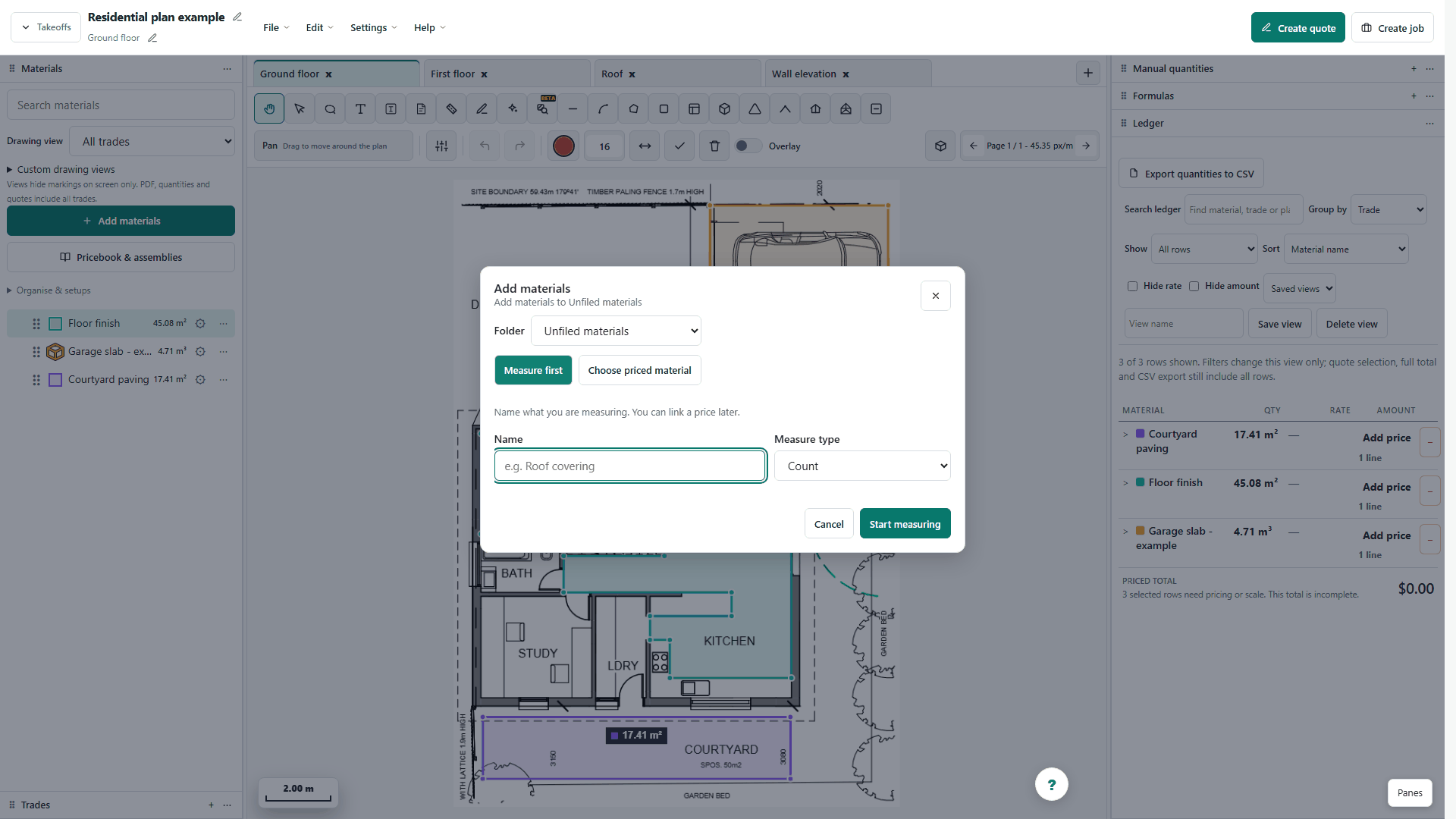
- Choose Marker and select a compatible project material, or choose Draw unassigned to price the count later.
- Check the drawing legend, then place one marker on each confirmed fixture or symbol.
- Review the complete page for missed symbols and duplicate markers; keep different fixture types in separate materials.
- Select unassigned markers and choose Assign material, then check the count and linked price in the ledger before saving.
Worked example
Place one marker on each confirmed light fitting, then inspect the complete plan for missed or duplicate placements before linking the count to a priced item.
This is an illustrative scenario. Use your own approved scope, quantities, rates and business rules.
Check the result
Match every counted symbol to the intended item. Different symbol types may require separate materials and prices.
Limits and troubleshooting
A marker records a count, not a window dimension. Check sizes separately against the drawing or schedule, and review all placements for missed or duplicate symbols.
Open the complete takeoff walkthrough with volume, formula, assembly and overlay examples
Check current plans and feature availability · Browse every guide