Construction Takeoff Software
Measure PDF and image plans on screen, keep every area, length and count editable, then turn reviewed quantities into priced AllQuote quotes using your price book and assemblies. Compare current plans for takeoff, estimating and job-management access.
Half price for your first 6 months on Business
- Business A$174.50/month for the first 6 months, then A$349 a month
New monthly Business subscriptions, including Takeoff and field management, once per account. The separate Takeoff plan is not discounted. Prices include any applicable GST/VAT. Any tax charged is shown before payment. Conditions apply. See the offer
Offer terms
Once per account, across all its businesses. Available to accounts taking their first Team or Business subscription, including upgrades from Free, Starter or Crew. Existing or previous Team, Business and Enterprise subscribers cannot redeem, including downgrades. Cancellation and rejoining do not reset eligibility. Monthly AUD Core plans only. Prices include any applicable GST/VAT. Any tax charged is shown before payment. Starter, Crew, Takeoff, custom Enterprise agreements, annual plans, add-ons and usage are excluded. Cannot be combined with another discount. After 6 months, the standard monthly price applies automatically unless you cancel. For upgrades, Stripe shows any prorated charge or credit before you confirm.
Create a free account or sign in, then open Billing → WELCOME50 and choose a plan. The code is applied before you confirm payment in Stripe.
Compare drawing layers in the Takeoff workspace.
This current product screenshot shows a three-layer overlay using anonymised drawing extracts and demonstration data. Adjust the overlay to inspect how the drawing layers relate.
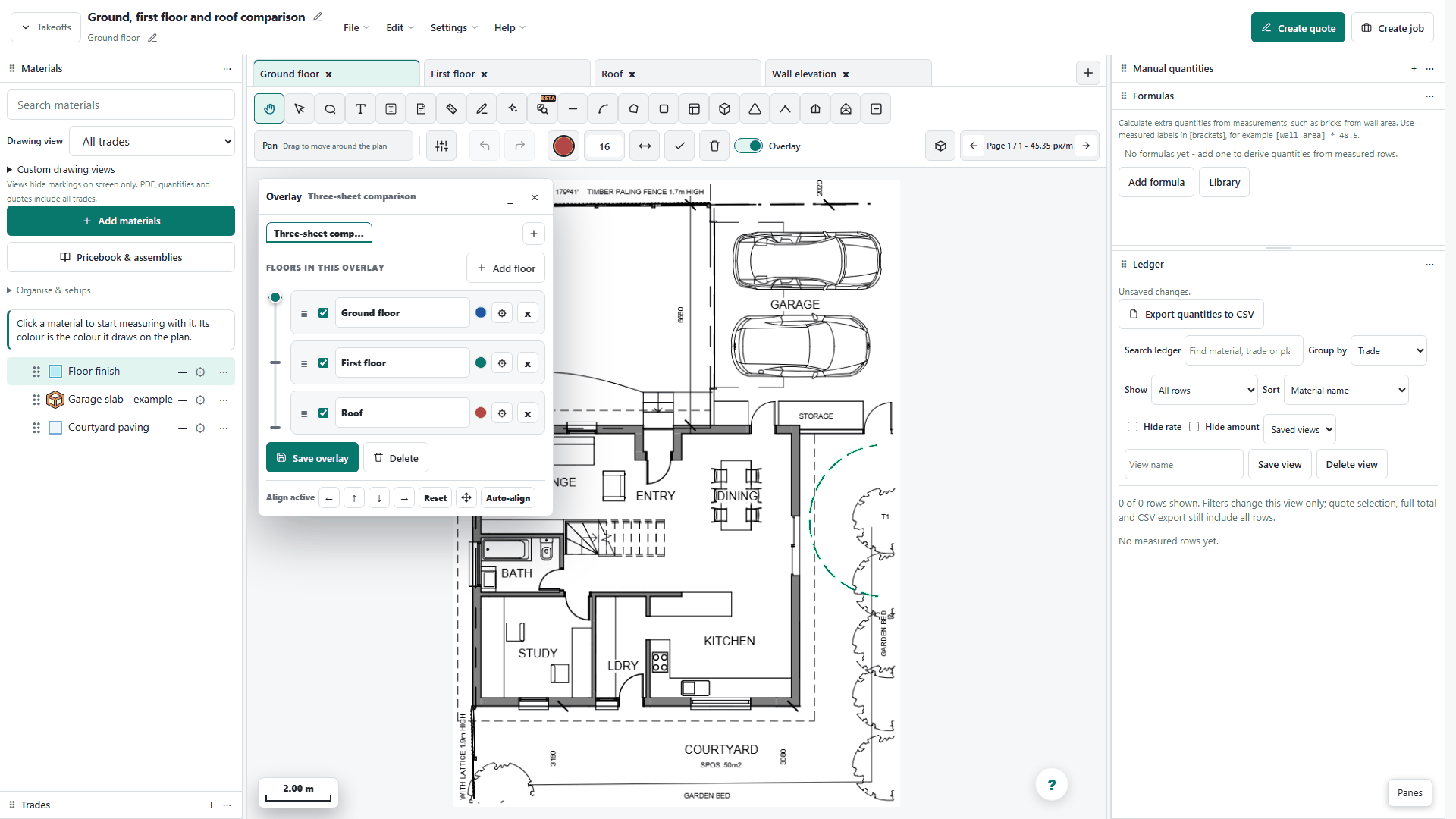
- Calibrate both source pages against known dimensions.
- Align matching reference points, then adjust tint or crossfade to compare the plans.
- Review affected measurements and their rates before inserting selected rows into a quote.
Read the takeoff quickstart or explore the construction estimating workflow.
Worked takeoff guides: driveway volume and depth, measured formulas, material and labour assemblies, and revision overlays.
Every sheet, at the right scale
Load PDF or image plans into one takeoff and move between sheets using plan tabs. Scale belongs to the page, so a detail drawing can use a different scale from a floor plan.
Scale and title-block detection can suggest a starting point. Check the units and a known dimension before accepting it, or calibrate with two points and their real length.
Measure the work, deduct the openings
Trace a floor, draw a cable or pipe length, or place individual fixture markers. Keep different materials separate so the ledger shows what each measured quantity represents.
Deduct openings from an area instead of pricing the gross outline. Pitched area and Volume ask for the pitch or depth used in the calculation; inspect these inputs along with the drawing.
A room fill you can check
Smart Select finds the boundary around a point inside a room, floor or bounded face. Check that the preview follows the intended edge, especially around openings, before using the selection.
For repeated finishes, Project-wide Pattern Search samples a hatch, colour or texture and self-calibrates its matching across the plan set. Review candidates before confirming editable areas. When a vector plan contains named legend surfaces, Review surfaces offers those named areas for review. These tools do not automatically identify every wall or finish.

One outline, several material layers
A floor outline can carry its finish and underlay as separate material layers. Apply a build-up to the measured geometry, then review each layer's quantity and mapping in the ledger.
Choose material colours and fill patterns to make overlapping scopes easier to read. A visible hatch identifies the material; the linked rate or assembly determines its pricing.

Compare floors and revisions
Revision floor overlays place comparison sheets over a base drawing. Calibrate the source pages, select the layers to compare, then use Auto-align or shared reference points to line them up.
Inspect the alignment before relying on it. Tint, layer order and crossfade help reveal shifted walls or openings; review the affected measurements and prices yourself.
Your quantities, your price book
Connect an area, run or count to a compatible price book item or assembly. An assembly brings its material and labour components into the pricing calculation, so you can check the quantities, units and rates before committing the work to a quote.
Use supplier items that have been added to your AllQuote price book. Review rates and scope before sending; a measurement alone is not a finished customer price.
Material and labour assemblies keep component quantities and rates together for review.
Reece-synced products can be used once they are in your AllQuote price book and an eligible business account is connected and authorised.
Turn measured areas into buying quantities
Reference a ledger label in an expression, for example [Wall area] * 48.5 for an illustrative brick allowance per square metre. Enter your own coverage rate and output unit; the example is not a specification for every wall.
Check the derived result, waste allowance and purchasing units before pricing. The formula stays editable, so changes to the measured work can be reviewed alongside the result.

Drawing and ledger views for each trade
Group measured rows by trade, plan/page, material or unit. Sort by name, quantity within each unit, or amount, and filter for rows needing pricing, review or scale.
Save a named ledger view in this browser to repeat the same review. These personal presentation settings do not change quantities or which rows are selected for quoting.
Choose which trade materials appear on the drawing, then save that combination as a named view. Switch between scopes when a shared plan contains several trades.
Drawing views control visibility. Check the ledger and the rows selected for the quote separately so hiding a material is never mistaken for removing it from the estimate.

Take the quantities into the next job
For a quote-linked takeoff, insert the reviewed, selected rows into that quote. A standalone takeoff can create a quote or a job from its reviewed ledger, subject to your permissions and job allowance. Check the resulting document before sending it to a customer.
With export permission, download quantities as CSV or use Download pack for the Excel (.xlsx) legends workbook and marked-up PDF. Downloads are built from saved takeoff data. PDF output provides the marked-up plan; choose measured pages or all pages for the handover.


Smart Tubing: pipe runs, fittings and linked prices
Build a plumbing material list from the routes you draw. Choose a saved tubing set with pipe material, diameter and linked component prices, then review the supported bends and junctions counted from the plan.
Configure straight lengths, couplings, elbows, tees and end caps with your own price book items. Keep the pipe system and its fitting prices together.
Check the editable fitting choices against your intended installation. Pipe material, diameter and connection method determine which products are suitable.
Review configured stock lengths, cuts, offcuts and additional straight-run joins before purchasing. A measured route alone is not a complete installation specification or an optimised cutting schedule.
Assistance that shows its work.
The editable tools are the product foundation. When detection helps, you still get the information needed to accept, reject or correct its suggestion.
See where takeoff fits in your AllQuote plan.
Manual takeoff is included with Takeoff, Business and Enterprise. Team feature settings and permissions apply. Editing requires quote-creation permission; field roles do not have the web editor. Quantity downloads require export permission. Creating a job also requires job access and an available place within your plan's monthly job limit. Check the current pricing page before choosing a plan.
Questions about plan takeoff in AllQuote.
What is a construction takeoff?
A construction takeoff turns the dimensions, areas, runs and symbols on a plan into quantities for labour and materials. AllQuote keeps those measurements editable so they can be checked before pricing.
Can I take off quantities from PDF plans?
Yes. Upload a PDF or image plan, calibrate the page scale, then measure areas, lengths, counts, walls, volumes and deductions on screen. Each result remains editable and should be reviewed against the source plan.
How do takeoff measurements become a quote?
Map reviewed measurement rows to your price book items or assemblies, check the quantities and pricing, then insert the selected rows into an AllQuote quote. Supplier-sourced items can be used when they have been added to your price book.
Which trades can use AllQuote takeoff software?
Any trade that prices work from drawings can use the editable measurement tools. Common uses include electrical symbol counts, plumbing and HVAC runs, building quantities, painting and plastering areas, tiling, carpentry and landscaping.
What plan file types are supported?
AllQuote accepts PDF, PNG, JPG and JPEG, WebP, GIF, BMP, SVG and DXF plan files. Plan legibility and scale still matter, so every page and measured result should be checked before quoting.
Do measurement suggestions replace a final review?
No. Calibrate the plan, inspect each suggested match or measurement, and correct the editable quantities before pricing. Scale suggestions, pattern matching and measurement tools do not replace trade judgement or a final quantity and price review.
Does AllQuote include Smart Tubing for plumbing takeoffs?
Yes. Smart Tubing links a saved pipe material, diameter and fitting price set to drawn pipe runs. It counts supported bends and junctions from the route. Review the fitting choices, stock lengths, cuts, additional straight-run joins and product compatibility before quoting or purchasing. It is available with takeoff access.
Can I download quantities and marked-up plans?
With export permission, download saved quantities as CSV or choose Download pack for the Excel (.xlsx) legends workbook. You can also export marked-up plans as PDF. Review and save your work before downloading.
Can I create a quote or a job from a takeoff?
Yes. A standalone takeoff can create a quote or job from reviewed ledger rows. A quote-linked takeoff can insert selected rows into its quote. Job creation requires job access and an available place within your monthly job limit.
Can one measurement price several materials?
Yes. Apply a material build-up to shared geometry and review its layers in the ledger. Link compatible rows to price book items or assemblies, and use formulas for derived material quantities.
Can I save my ledger grouping and drawing views?
Yes. Save trade-based drawing views for a page and personal ledger views in your browser. Ledger views group, sort and filter the presentation without changing quantities or quote selection.
Which plans include takeoff?
Manual takeoff is included with Takeoff, Business and Enterprise. Team feature settings and permissions apply. Editing requires quote-creation permission; field roles do not have the web editor. Quantity downloads require export permission. Creating a job also requires job access and an available place within your plan's monthly job limit.